Following along? Open the live page
Finmagine — free to explore • premium for full access • no app needed
Multimedia Learning Hub
Everything you need to get started with the Portfolio Manager's 13 tabs
What You Will Master
The Portfolio Manager is Finmagine's most comprehensive tool — a full-featured web app that tracks everything you own and watch across Indian equities, mutual funds, and global holdings. It works alongside the Finmagine browser extensions to pull your broker positions automatically, so your portfolio is always up to date without manual entry.
What This Guide Covers:
- How data gets into the Portfolio Manager — adding trades, browser extension sync, multi-broker support
- The Stats Strip — reading your portfolio's live XIRR, index-beat, and daily movers at a glance
- Asset Class Pills — filtering the view across Indian Equities, Global Equities, Mutual Funds, and Global Funds
- All 13 tabs — what each tab does and when to use it
- Free vs Premium access — which tabs are available on each tier
Who This Is For:
- Long-term equity investors — track cost-basis, XIRR, 3Y/5Y CAGR, and whether you are beating the index on each holding
- Active traders — monitor live P&L, stop-loss alerts, and momentum signals across all positions in one view
- Multi-broker investors — consolidate Zerodha, Upstox, Groww, Sharekhan, Angel, mStock, ICICI Direct, HDFC Sec, and INDMoney positions into one dashboard
Video Walkthrough
Pending Corporate Actions is the payoff step of a real, end-to-end Long-Term Investor workflow — resolving a real pending stock split and watching cost basis and risk alerts recalculate automatically.
Getting Your Portfolio Data In
Adding Trades Manually
Click the + Add Trade button in the top-right header. Fill in the stock symbol (NSE ticker), quantity, buy price, purchase date, and the broker you used. The trade appears immediately in Holdings with live price data. You can also add sells to record exits and realised P&L.
Extension Sync (Recommended)
The Finmagine browser extensions for Zerodha, Upstox, Groww, and other supported brokers automatically detect your holdings when you visit your broker's portfolio page and push the position data to Finmagine. Once synced, each broker's allocation percentage appears as a column in Holdings — so if you hold Titan across three brokers, you see three separate position columns in one row.
Supported Asset Classes
The Portfolio Manager supports four asset classes, selectable via the Asset Class Pills below the tab bar:
Indian Equities is the default. Switching to Overview shows all asset classes combined in one table. Vintage cohort analysis works only on Indian Equities (IN_EQ) holdings.
Reading the Stats Strip
The sticky strip below the header gives you five live numbers for your entire portfolio:
- Today: Your entire portfolio's percentage and absolute change for the current session based on live LTP.
- XIRR p.a.: Your annualised return accounting for all buy/sell timing — the true compounded rate you have earned.
- Since: The date and duration of your oldest active holding. The Nifty 50 figure next to it is the index return over the same period — your personal benchmark.
- Nifty 50: The Nifty 50's return since your portfolio start date. If your XIRR exceeds this, you are beating the index.
- Today ≥5%↑ / ≤−5%↓: How many holdings moved at least 5% in either direction today — a quick scanner for positions that need attention.
All 13 Tabs at a Glance
Pending Corporate Actions
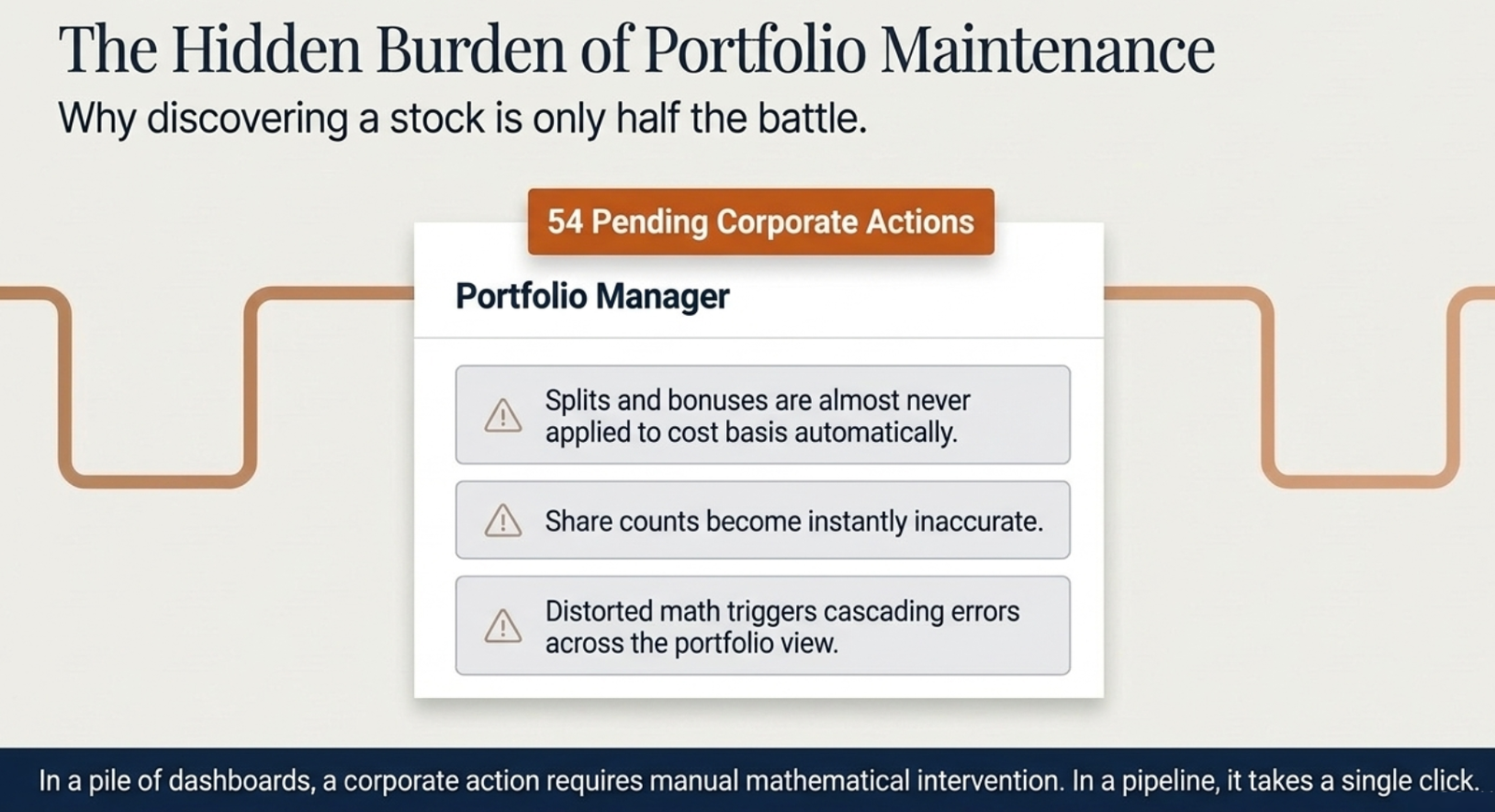
Splits and bonuses are almost never applied to your cost basis automatically — the exchange announces a ratio change, but your recorded quantity and average price stay exactly as they were on the day you bought. Left unresolved, this distorts everything downstream: P&L%, stop-loss distance, and any alert that depends on cost basis. The Alerts tab's Pending Corporate Actions panel exists specifically to catch this — it lists every holding with a known, unapplied split or bonus, with the stock, action type, ratio, and ex-date, and an Apply / Dismiss button on each row.
Resolving a Split or Bonus
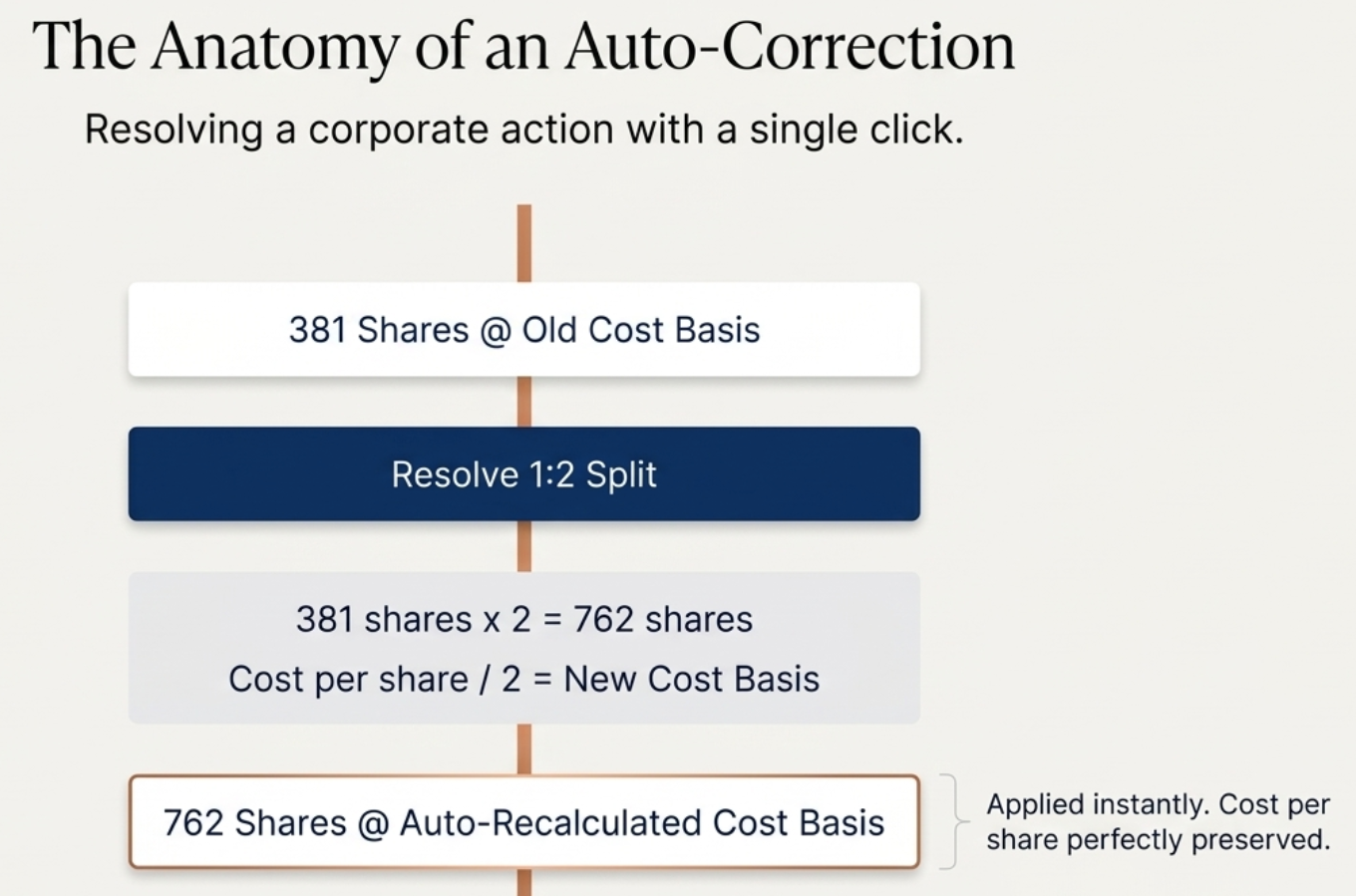
Clicking Apply on a row opens a preview modal — not a blind confirmation. It shows the ratio (or lets you enter a face-value change instead), the effective multiplier in plain language ("1 share splits into 2 shares"), and an exact lot-level before/after: how many shares each lot currently holds and what it becomes. Total invested stays the same; only quantity and price-per-share adjust. Confirming applies the change immediately — cost basis, quantity, and every metric that depends on them (P&L%, XIRR, stop-loss distance) recalculate in place.
Why This Also Fixes False Stop-Loss Alerts
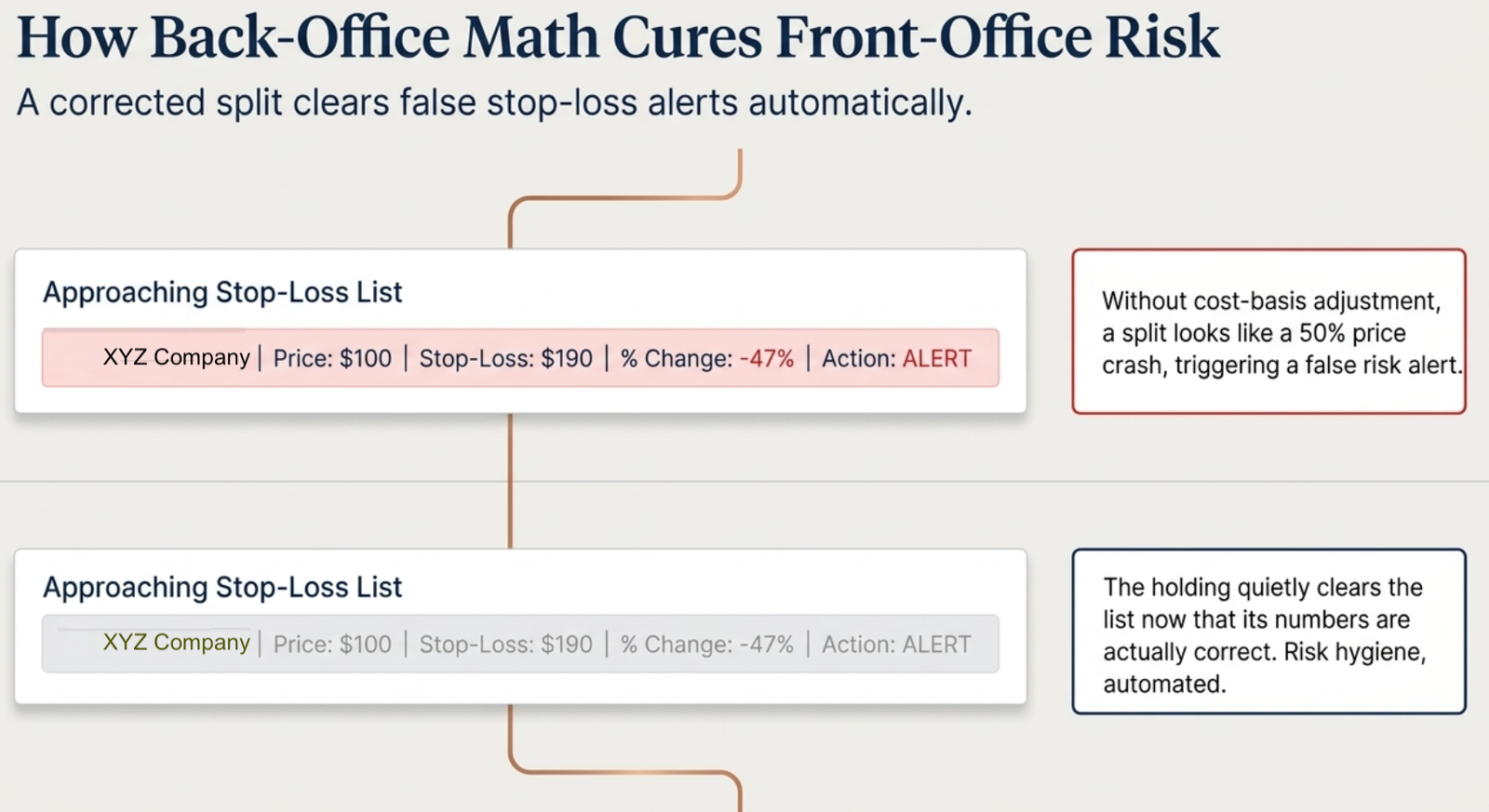
An unresolved split doesn't just leave a stale share count — it can actively mislead the Stop-Loss Breached and Approaching Stop-Loss lists in the same Alerts tab. A 1-for-2 split halves the traded price overnight; without the matching cost-basis adjustment, that reads as a 50% price crash and can trigger a false stop-loss alert on a holding that hasn't actually lost any value. Resolving the corporate action corrects the cost basis, and the holding quietly clears the list on its own — no separate action needed.
Access Tiers
| Tab | Free (Logged In) | Premium |
|---|---|---|
| Holdings | ✅ Full access | ✅ Full access |
| Alloted / Consider / Add More | ✅ Full access | ✅ Full access |
| Watchlist | ✅ Full access | ✅ Full access |
| Charts | ✅ Full access | ✅ Full access |
| Alerts | ✅ Full access | ✅ Full access |
| Journal | ✅ Full access | ✅ Full access |
| Backtest | ✅ Full access | ✅ Full access |
| Vintage (Cohort + CAGR Matrix) | ✅ Full access | ✅ Full access |
| Settings | ✅ Full access | ✅ Full access |
| Rebalance | 🔒 Upgrade prompt | ✅ Full access |
| Momentum Streaks | 🔒 Upgrade prompt | ✅ Full access |
5-Step Getting Started Workflow
Step 1 — Add your holdings
Click + Add Trade and enter each stock: symbol, quantity, price, date, broker. Do this for all open positions. If you use a supported broker, install the Finmagine extension and visit your broker's portfolio page to sync positions automatically — broker position percentages will then populate in the Holdings table.
Step 2 — Set up your Settings
Click the ⚙ Settings tab and configure the thresholds that make sense for your portfolio size. If you invest ₹50,000 per stock, set the Consider limit to ₹50,000. If you target 5% per broker, leave the Alloted and Add More thresholds at default. These settings drive the three Smart View tabs instantly.
Step 3 — Review Holdings and Smart Views
Open Holdings to see the full picture sorted by invested amount. Switch to Alloted to see which positions are well-built. Switch to Consider to find stocks worth adding to. Switch to Add More to find positions that are thin in at least one broker account. These three views replace manual spreadsheet work.
Step 4 — Monitor your Watchlist
Go to Watchlist — your holdings appear automatically. Add any stocks you are researching. The Review Holdings card at the top checks all your positions for sell signals: stop-loss breach, overvaluation, pledge spike, promoter exit, D/E deterioration, ROCE decline, and consecutive revenue misses. 🚩 flags appear inline on Holdings rows for stocks with active signals.
Step 5 — Use analytical tabs for periodic reviews
Run Backtest monthly to see how your portfolio performed vs benchmark. Use Vintage (Analytics) quarterly to understand which era of buying has compounded best. Use Rebalance (Premium) when you want to bring your portfolio back to target weights after a significant market move. Check Momentum Streaks (Premium) weekly to see which holdings have sustained technical momentum signals.
Individual Tab Deep Dives
This hub guide covers all tabs at a glance. Each tab also has its own dedicated guide covering every column, setting, and workflow in detail:
Ready to Analyse Indian Stocks Like a Pro?
Finmagine gives you 30+ computed financial ratios, sector benchmarks, FII/DII flows, the Finmagine Score, and AI-powered analysis — all in one place.